📌 Version 1.0 This is the first generation of our components. Some may have minor alignment differences or use widgets that aren't perfectly matched to the content type. Even so, they provide a strong structural foundation and are very useful for quickly building any type of website. We're continuously improving them; future versions will be even more polished.
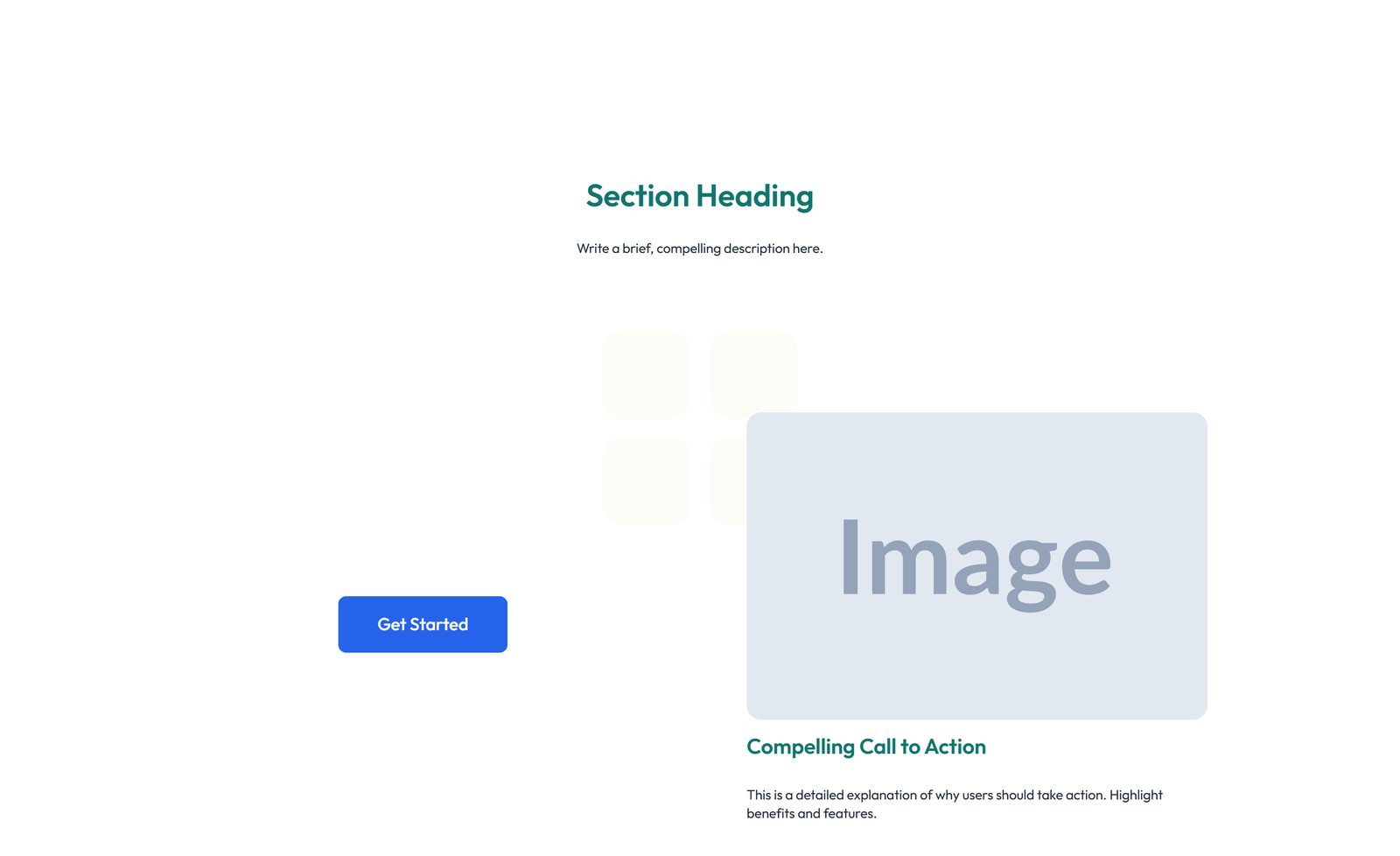
Why does this look plain/unstyled? Snapelement components are intentionally unstyled. They contain no hardcoded colors, fonts, or spacing. When you paste them into Elementor, they automatically adopt your site's Global Styles (colors, fonts, buttons). The preview may look off or basic here, but once imported, every element matches your brand.
Layout
split: text left + image right
About This Component
Call to Action sections are strategically placed conversion elements that drive visitors toward a specific desired action. Designed by Snapelement, this call to action section template provides a polished, production-ready layout for WordPress websites built with Elementor. The design features a well-organized layout with section heading and subtitle: split: left CTA button / right heading and text. It is built using Heading, Text Editor, Button, and Image widgets, designed to inherit WordPress Global Styles automatically for consistent branding. Ideal for app download sections, product purchase flows, and contact form prompts. Get started by copying this component into your Elementor editor — it adapts to your Global Styles automatically. The visual hierarchy in this CTA component draws the eye directly to the action button, while supporting text provides the motivation needed to click. The Global Styles integration ensures visual consistency across your entire website, as this section inherits your theme's typography, color palette, and spacing. The balanced element count provides visual richness without compromising page performance.
How to use
- 1.Click “Copy JSON” above (or download the file)
- 2.Open your page in Elementor editor
- 3.Right-click on the canvas → Paste
- 4.The component appears with your site's Global Styles applied automatically
Split Call to Action with Text Left and Image Right 6
These components use Global Styles. They automatically inherit your site's colors, fonts, and button styles when you paste them.
Widgets used
Unlock Pro widgets with Elementor Pro
Get access to forms, sliders, testimonial carousels, and 20+ premium widgets
Get Elementor Pro →Launch Your Website: Get 20% Off Hostinger!
Ready to build your dream site? Get fast, reliable, and affordable web hosting with Hostinger. Use my exclusive link to score an extra 20% off your plan today!
Get 20% Off →Get premium cloud hosting, enterprise-grade security, and 24/7 support at your fingertips.
Ideal for agencies, freelancers, and businesses building professional WordPress sites.
Get Cloud hosting for WordPress →Related CTA Sections
Call to Action with Bar: Icon, Text, CTA 36
section heading + subtitle: full-width: heading + subtitle + CTA + trust logos below
Split Call to Action with Text Left and Image Right 18
section heading + subtitle: minimal: single line heading + CTA left-aligned
Centered Call to Action 24
stacked btn+text logos no-badge normal
Centered Call to Action with Dual Buttons and Quote Block 5
centered 2-btn quote no-badge normal
Centered Call to Action with Heading, Two CTA Buttons 67
section heading + subtitle: full-width: slides widget (Pro) as CTA banner
Centered Call to Action with Single Button 27
centered 1-btn logos no-badge relaxed