📌 Version 1.0 This is the first generation of our components. Some may have minor alignment differences or use widgets that aren't perfectly matched to the content type. Even so, they provide a strong structural foundation and are very useful for quickly building any type of website. We're continuously improving them; future versions will be even more polished.

Why does this look plain/unstyled? Snapelement components are intentionally unstyled. They contain no hardcoded colors, fonts, or spacing. When you paste them into Elementor, they automatically adopt your site's Global Styles (colors, fonts, buttons). The preview may look off or basic here, but once imported, every element matches your brand.
Layout
4-entries icon h+sub CTA tight
About This Component
Timeline sections present chronological events, milestones, or processes in visually connected sequential layouts. Snapelement offers this timeline section as a free, copy-and-paste component designed specifically for the Elementor page builder on WordPress. The design features 4 content entries, a subtitle for additional context beneath the heading, and a prominent CTA section for conversion focus. The section is built using E Div Block, E Flexbox, Heading, E Paragraph, and E Svg widgets, leveraging Elementor 4.0 atomic elements for a lighter DOM and faster page loads. Ideal for project milestone trackers, product roadmap sections, and educational curriculum timelines. Import this section into Elementor with one paste and tailor it to match your brand identity. The component responds gracefully across desktop, tablet, and mobile breakpoints, ensuring a consistent experience for all visitors regardless of their device. The atomic element architecture means fewer nested containers and cleaner markup, which directly benefits both performance and search engine crawlability. This template strikes the right balance between visual complexity and page load efficiency.
How to use
- 1.Click “Copy JSON” above (or download the file)
- 2.Open your page in Elementor editor
- 3.Right-click on the canvas → Paste
- 4.The component appears with your site's Global Styles applied automatically
Centered Timeline with Subtitle, CTA, and 4 Entries
This component is built with Elementor 4.0 atomic elements. Clean and lightweight structure.
Widgets used
Unlock Pro widgets with Elementor Pro
Get access to forms, sliders, testimonial carousels, and 20+ premium widgets
Get Elementor Pro →Launch Your Website: Get 20% Off Hostinger!
Ready to build your dream site? Get fast, reliable, and affordable web hosting with Hostinger. Use my exclusive link to score an extra 20% off your plan today!
Get 20% Off →Get premium cloud hosting, enterprise-grade security, and 24/7 support at your fingertips.
Ideal for agencies, freelancers, and businesses building professional WordPress sites.
Get Cloud hosting for WordPress →Related Timeline / History
Timeline Layout Style 5 21
vertical timeline with icon per entry narrow centered card style
 V3 Adaptive
Timeline Layout Style 3 6
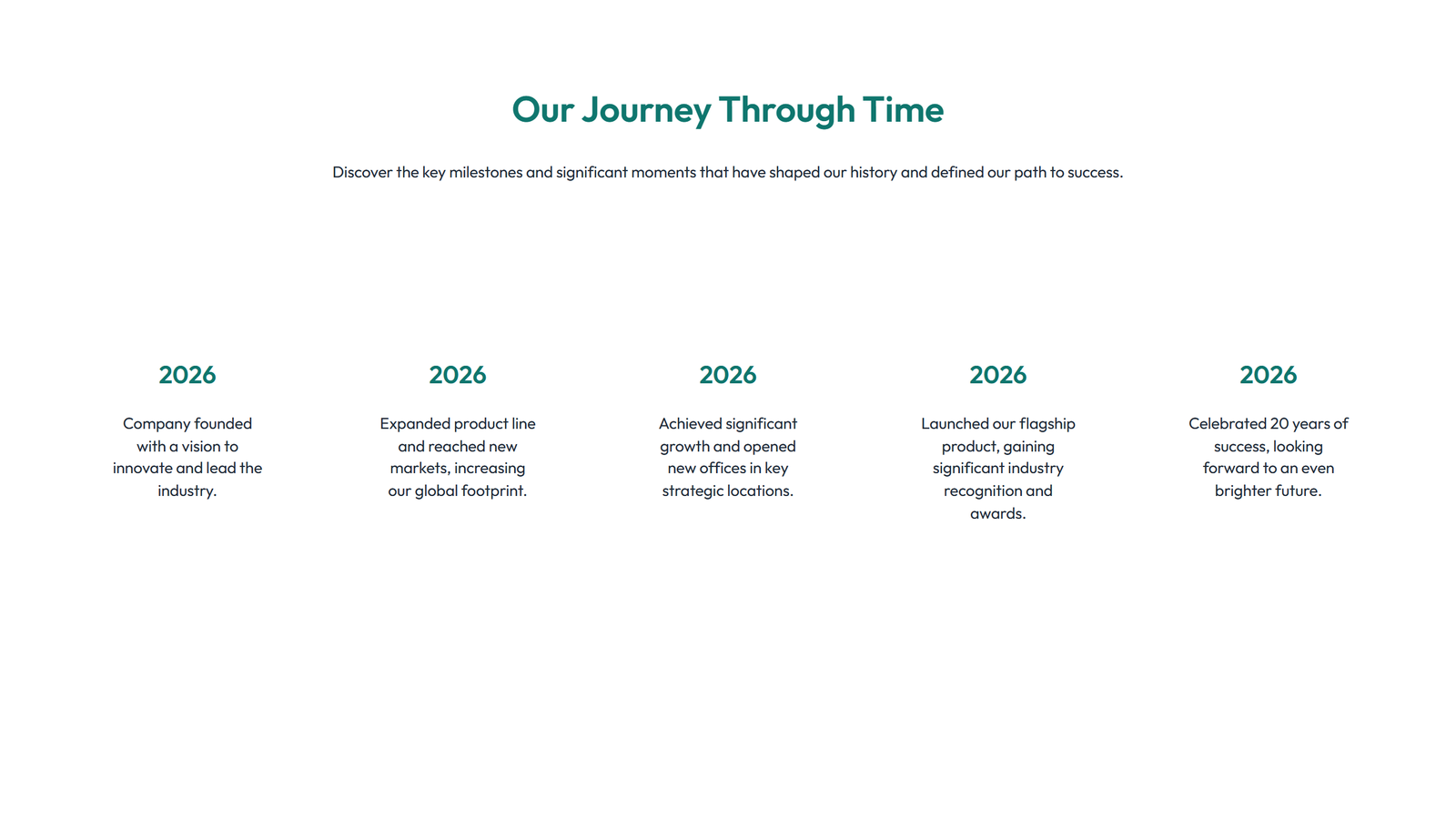
horizontal timeline: 5 milestones spacious variant with extra padding
Timeline Layout Style 2 3
vertical timeline: 4 date entries with icons full-width layout
Timeline Layout Style 3 23
single featured milestone + history list with divider above
Timeline Layout Style 2 20
vertical timeline with icon per entry centered layout
Timeline Layout Style 2 21
vertical timeline with icon per entry with social-icons row