Why your Elementor site is slow even on V4
Snapelement · 9/27/2026
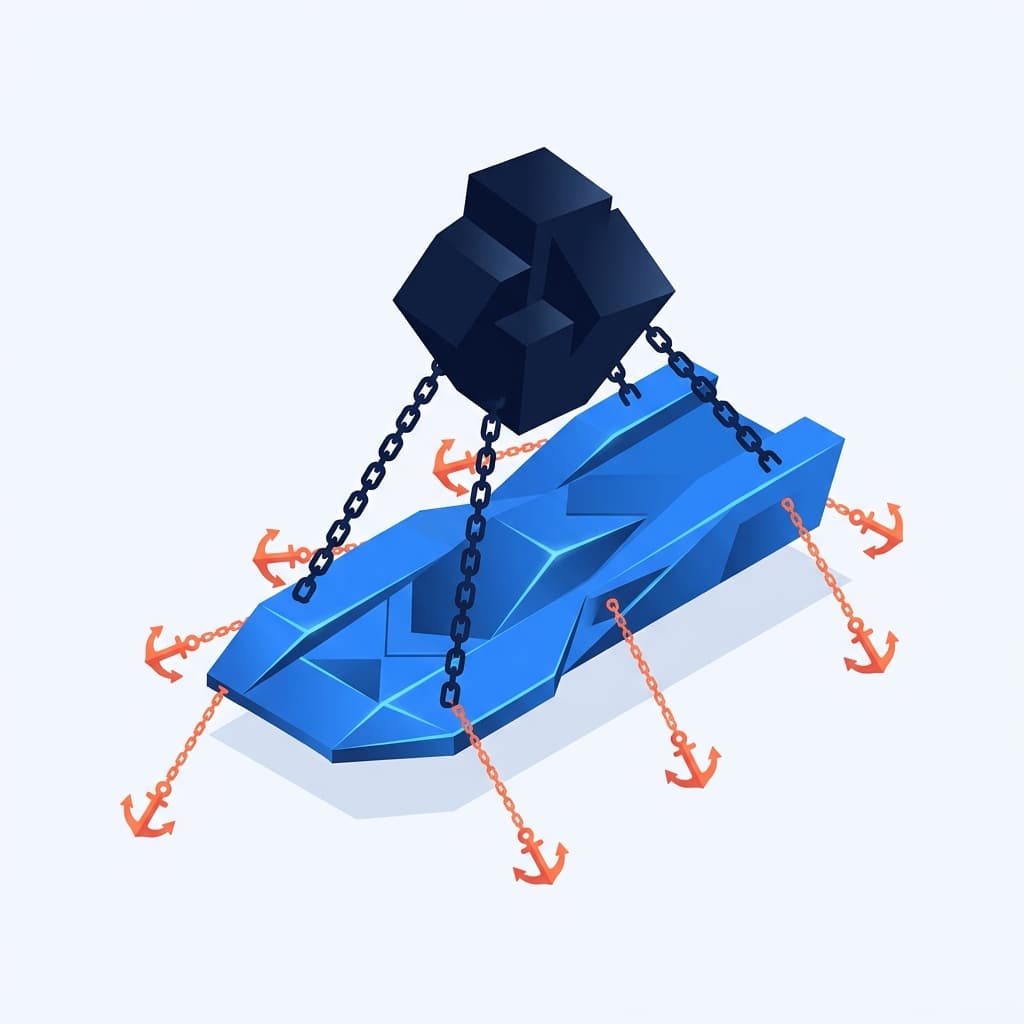
V4 fixed the DOM, not your site
Elementor V4 atomic made the HTML output cleaner and the CSS lighter. That is a real improvement. But if your site was slow before V4 and it is still slow after V4, the problem was never Elementor's DOM output. The problem is something V4 cannot fix because it is not Elementor's responsibility.
Here are eight common reasons an Elementor V4 site stays slow, and what to do about each one.
1. Your hosting is slow
This is the most common and most ignored performance problem. If your server takes 800-1,500ms to generate the HTML response (Time to First Byte, or TTFB), nothing else matters. Users are staring at a blank screen for over a second before the browser even starts rendering.
Shared hosting plans from GoDaddy, Bluehost, HostGator, and similar mass-market hosts are designed for cost, not speed. They cram hundreds of sites on the same server. Each site gets limited CPU and memory. When your neighbor's site gets traffic, your site slows down.
The fix: Move to managed WordPress hosting. Cloudways (DigitalOcean or Vultr), Kinsta, SiteGround's GoGeek plan, or WP Engine. Expect to pay $15-30/month instead of $5/month. The difference in TTFB is typically 200-400ms vs 800-1,500ms. That 400-1,100ms improvement affects every single page load and is larger than anything Elementor V4 can contribute.
If you manage client sites, this is the single most impactful recommendation you can make. A client on $5/month hosting who asks why their site is slow does not need V4. They need hosting that responds in under 500ms.
2. Your images are not optimized
The hero image is a 3MB PNG uploaded straight from Photoshop. The client added a 4000x3000 photo to a 400px-wide card. The About page has twelve team photos at 2MB each. These images dominate page weight and directly slow LCP (Largest Contentful Paint).
V4 does not change how images load. It does not compress, resize, or convert your images. That is still on you.
The fix:
- Format: Use WebP or AVIF. Not PNG, not JPEG (except as fallback). WebP is 25-35% smaller than JPEG at the same quality and has universal browser support in 2026.
- Sizing: Do not upload larger than needed. If the image displays at 800px wide, the source file should be 800px wide (or 1600px for retina). WordPress generates responsive sizes, but only if the original is reasonably sized.
- Compression: Use a plugin like ShortPixel, Imagify, or EWWW. Set quality to 80-85%. The human eye cannot distinguish 85% quality from 100% in most contexts.
- Lazy loading: Enable native lazy loading (WordPress does this by default for images below the fold). Make sure your above-the-fold hero image is NOT lazy-loaded, because lazy-loading the LCP image delays it.
A properly optimized site serves images totaling 200-500KB. An unoptimized site can easily hit 5-15MB of images. No amount of DOM optimization compensates for that.
3. You have too many plugins
Thirty-eight active plugins. Twelve of them load JavaScript and CSS on the frontend. Four of them do overlapping things (two SEO plugins, two security plugins). One is a slider plugin you used on one page three years ago.
Each plugin that loads frontend assets adds to page weight and extends the time the browser spends parsing and executing scripts. A plugin that adds 50KB of JavaScript might not seem like much. Twelve plugins adding 50KB each is 600KB of JavaScript the browser must download, parse, and execute. On mobile, parsing 600KB of JavaScript takes 1-2 seconds of CPU time.
The fix: Audit your plugins. For each one, ask: does this plugin load assets on the frontend? You can check by viewing the page source and searching for the plugin's name in script and stylesheet references. If a plugin loads frontend assets but is only used on specific pages, use a plugin like Asset CleanUp or Perfmatters to disable its assets on pages where they are not needed.
If you have plugins you installed for a one-time task and never removed, deactivate and delete them. Inactive plugins do not affect performance, but they do affect security. Deleted plugins affect neither.
4. You are loading too many fonts
Four Google Font families with three weights each. That is twelve font files the browser has to download before text renders. Each font file is 20-30KB. Total: 240-360KB of fonts, plus the connection overhead of fetching them from Google's servers.
While fonts load, the browser either shows invisible text (FOIT, Flash of Invisible Text) or a fallback font that jumps to the custom font when it loads (FOUT, Flash of Unstyled Text). Both are bad for CLS and perceived performance.
The fix:
- Use 1-2 font families maximum. One for headings, one for body. Many modern designs use the same font for both.
- Limit weights to what you actually use. If you only use Regular (400), Medium (500), and Bold (700), do not load Light (300), SemiBold (600), and ExtraBold (800).
- Self-host your fonts instead of loading them from Google Fonts. This eliminates the DNS lookup and connection to fonts.googleapis.com. The OMGF plugin handles this conversion automatically.
- Add
font-display: swapto your font declarations. This shows a fallback font immediately and swaps to the custom font when it loads, preventing invisible text.
5. No caching plugin (or misconfigured caching)
WordPress generates each page dynamically by default: PHP runs, the database is queried, HTML is assembled and sent to the browser. For a page that does not change between visits, this dynamic generation is wasted work. A caching plugin generates the HTML once and serves the static version to subsequent visitors.
If you do not have a caching plugin, every page load triggers a full WordPress cycle. TTFB for an uncached WordPress page is typically 500-1,500ms. TTFB for a cached page is typically 50-200ms.
The fix: Install WP Rocket, LiteSpeed Cache (if on LiteSpeed hosting), or W3 Total Cache. WP Rocket is the easiest to configure and covers page caching, browser caching, and basic file optimization. Turn on page caching. Verify it works by loading a page twice and checking that TTFB drops on the second load.
Configuration matters. A caching plugin that excludes dynamic pages (cart, checkout, account pages on WooCommerce) works. A caching plugin that caches everything including logged-in user pages causes bugs. Set it up correctly or it creates more problems than it solves.
6. Render-blocking third-party scripts
Google Analytics. Meta Pixel. Google Tag Manager loading six tags. A chat widget. HotJar or Microsoft Clarity. A cookie consent banner. An email popup script. These are all third-party JavaScript files your browser must download from external servers.
Third-party scripts are particularly damaging because they require DNS lookups to external domains, each of which adds 50-150ms. A page with five third-party scripts connecting to five different domains adds 250-750ms of connection overhead before the scripts even start downloading.
The fix:
- Audit your third-party scripts. List every external script your site loads. Question whether each is necessary.
- Defer non-critical scripts. Analytics, heatmaps, and chat widgets do not need to load before the page renders. Defer them or load them after the DOMContentLoaded event.
- Use Google Tag Manager's built-in trigger controls to load tags only on pages where they are needed. Do not fire every tag on every page.
- Replace heavy solutions with lighter alternatives. If you are using a 200KB chat widget that auto-loads on every page, consider replacing it with a link to a contact form.
7. Unused CSS and JavaScript from widgets you are not using
V4 per-element CSS loading helps with Elementor's own CSS. But if you have Essential Addons installed and you are using 3 of its 90 widgets, the plugin might still load CSS for all 90. Same with any other widget pack.
The fix: Most widget packs have an option to disable widgets you are not using. In Essential Addons, go to the dashboard and toggle off unused widgets. In Crocoblock, deactivate unused JetPlugins. Each disabled widget is CSS and JavaScript that stops loading.
For site-wide unused CSS removal, tools like PurgeCSS (built into some hosting platforms) or WP Rocket's Remove Unused CSS feature can strip CSS that does not match any element on the page. Use these carefully and test thoroughly, because aggressive CSS purging can remove styles that are needed for dynamic elements (accordion content, hidden tabs, popup content).
8. No CDN
A CDN (Content Delivery Network) serves your static files from servers close to the visitor. Without a CDN, a visitor in Tokyo loads your images and CSS from a server in Amsterdam. With a CDN, the same visitor loads from a server in Tokyo. The latency difference can be 200-400ms per asset.
The fix: Enable a CDN. Cloudflare's free plan is sufficient for most WordPress sites. It caches static assets at edge locations worldwide and also provides DDoS protection and SSL. If you want more control, BunnyCDN ($1/month for 1TB) or KeyCDN are affordable and perform well.
Cloudflare specifically pairs well with Elementor because it caches HTML pages at the edge (with APO for WordPress, $5/month), effectively eliminating TTFB for cached pages regardless of where your origin server is located.
The priority order
If your Elementor V4 site is slow, fix these in this order:
- Hosting (biggest potential improvement, affects every page)
- Images (usually the largest page weight contributor)
- Caching plugin (eliminates repeated server work)
- Fonts (direct impact on text rendering and CLS)
- Third-party scripts (connection overhead and JS execution time)
- Unused plugins/assets (cumulative weight reduction)
- CDN (latency reduction for geographically distributed visitors)
V4 atomic gives you a cleaner starting point. But a clean starting point with 3MB images, 38 plugins, shared hosting, and no caching is still a slow site. Fix the fundamentals first. Then V4's improvements become visible.
Build Faster with Free Elementor Components
Browse thousands of free, copy-paste Elementor components. Hero sections, pricing tables, FAQ accordions, headers, footers, and more. They adopt your Global Styles automatically.
Browse Components